Let your AI take care of your WidgetStore: our MCP server is live
WidgetStore now has an official MCP server and open API. Ask Claude, ChatGPT or Cursor to update your status, add countdowns, links and to-dos, with undo.
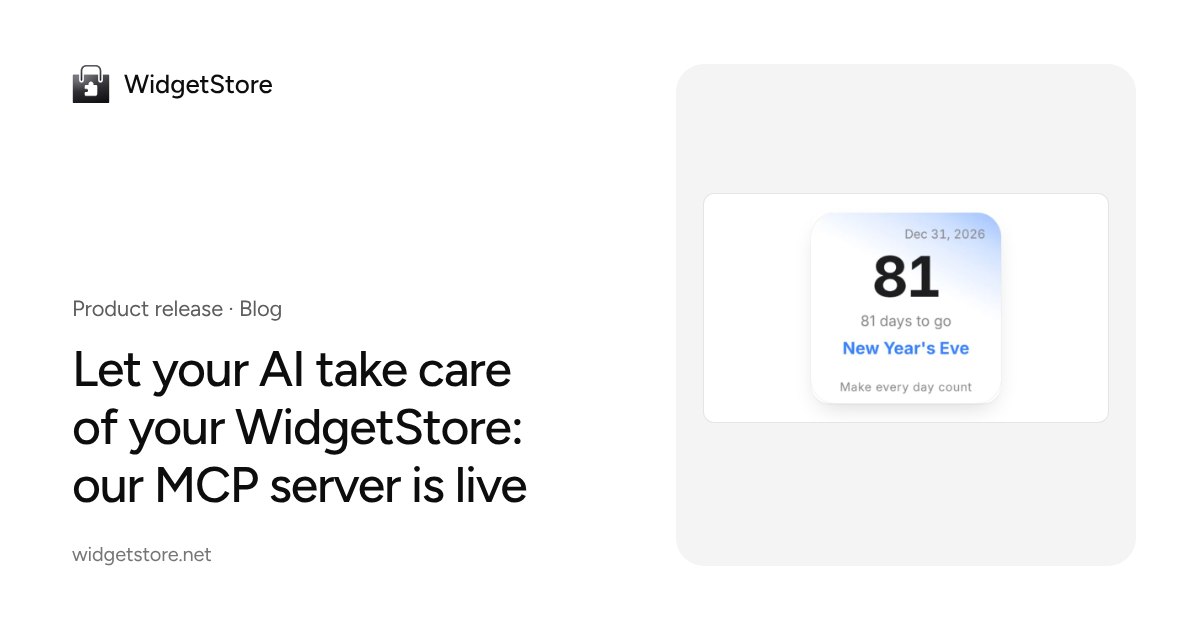
More and more of us chat with Claude or ChatGPT every day and write code in Cursor. So we kept asking ourselves: if your AI is already right there, why should changing your page status or adding a countdown still mean opening a site, finding the widget, editing its settings and saving?
Starting today, WidgetStore has an official MCP server. Connect it to your AI app, say what you want, and it's done.
Just say it
Once connected, ask in any chat:
- “Set my status to: on vacation in Kyoto, back next week.” The “Now” card on your personal page and the status widget in your Notion update together.
- “Add a countdown to my exam on December 20.” You get a new countdown widget and an embed link to paste into Notion.
- “Add Figma to my start page.” The icon is set up for you.
- “Check in running today and log 45 minutes of writing.” Synced with Focus.
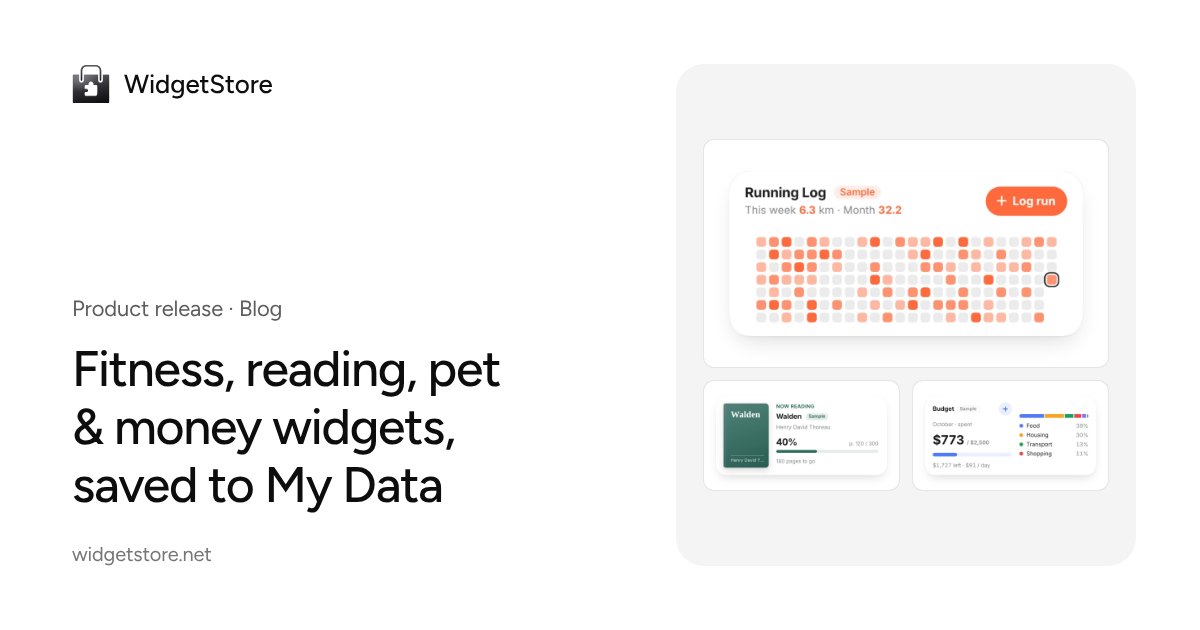
- “Log 6 glasses of water today.” Saved to My Data, and your chart widgets update on their own.
There are 16 tools across widgets, your personal page, start pages, focus and My Data. Your AI checks what you already have before changing anything, tells you what it changed with a link, and in Claude and ChatGPT you even see a widget preview right in the chat.
New widget: Now · Status
Alongside the launch we built a new widget, “Now · Status”: one line, an emoji and when it was updated. Write it yourself in the editor or let your AI update it. It shares the same data as the status card on your personal page, so one update shows up everywhere. Embed it on your Notion homepage or team page and everyone knows what you're up to.
Connect in two minutes
MCP URL: https://widgetstore.net/mcp
- Claude: Settings → Connectors → Add custom connector, paste the URL, click Connect.
- ChatGPT: turn on Developer mode in Settings → Apps & Connectors → Advanced settings, then create a connector.
- Claude Code:
claude mcp add --transport http widgetstore https://widgetstore.net/mcp - Cursor: add it to
mcp.jsonand click Login.
The first time, a WidgetStore page opens: sign in, click Allow, and you're set. No passwords or keys to copy. Step-by-step guides for each app are in the Help Center.
You stay in control
Your AI is changing your stuff, so safety comes first:
- Standard OAuth 2.1: AI apps never see your password, and access tokens expire after an hour.
- Choose what it can do: read-only, status, widgets, page, start pages, focus and My Data are separate permissions.
- No deleting: there are no delete tools. Your AI can create and edit, and can't touch your account or payments.
- Every change is logged: see who changed what and when in Settings → API & AI connections, and undo with one click for 7 days.
- Sensible limits: Free includes 100 calls and 30 changes a day; Pro includes 300 and 100.
For developers: personal tokens and an open API
For scripts, iOS Shortcuts and tools that can't sign in, create a personal API token in Settings and call the Open API v1. Everything MCP can do, the API can too, with consistent JSON and error codes.
Try it now
Copy the MCP URL from /ai, or jump straight to the setup guide. If there's something you'd love your AI to do that it can't yet, let us know.