Introducing My Data: your check-ins, in tables you own
My Data keeps your check-ins, counts and logs in tables you own, with heatmaps, streaks and export. Meditation Log and Habit Heatmap can write straight into them.
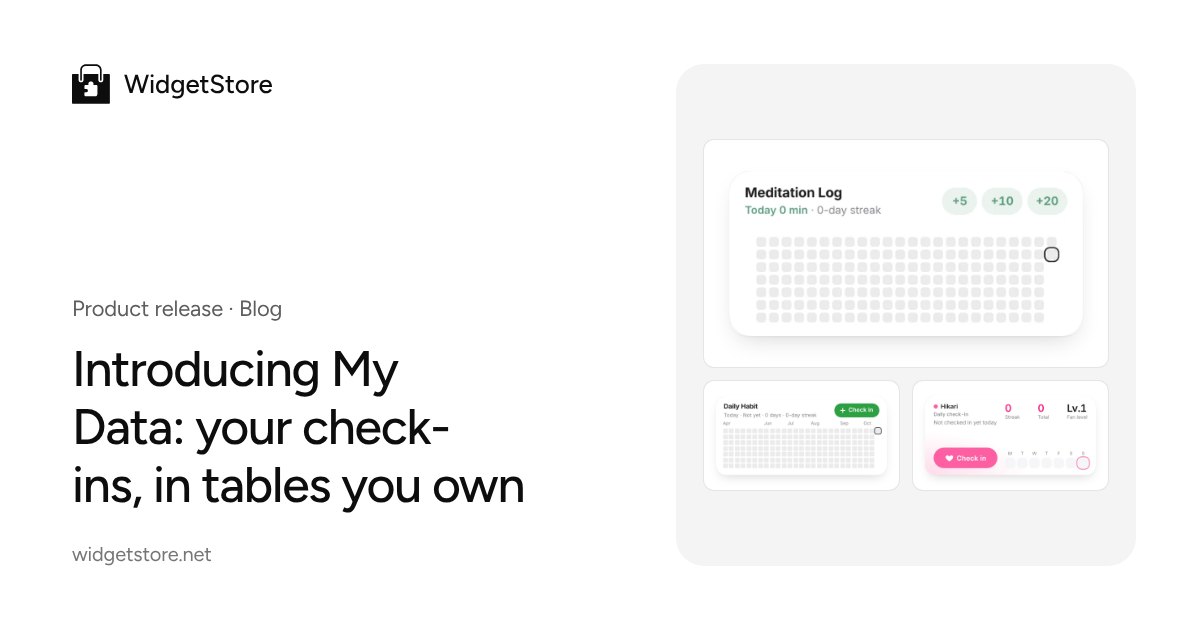
Lots of people use WidgetStore widgets to keep a streak going: drinking water, meditating, learning words, checking in for their favorite idol. Until now, those entries lived inside each widget. Switch to another widget or start over with a new style, and the history stayed behind. Want to know how many days you kept it up this year? You'd have to dig through widgets one by one.
So we built My Data: a space for data tables that belong to you. Entries are no longer tied to a single widget. They live in tables in your account, and widgets are simply the way you log and look at them.
What you can do
Open My Data from the avatar menu, click New table and start from one of four templates:
| Template | Records | Good for |
|---|---|---|
| Habit tracker ✅ | By day | Daily habits like exercise, water or sleeping early |
| Counter 🔢 | By day | How many times a day: Pomodoros, cups |
| Log 📓 | By time | One entry per session: reading, meditation, practice |
| Blank table 📄 | By day | Design your own fields |
Every table comes with a heatmap, your current and longest streaks and stats for the past year. Add your own fields (number, text, checkbox, select, tags, link and more), and export to JSON or CSV whenever you like — CSV opens straight in Excel or Google Sheets.
The Help Center has the details: My Data: tables, entries, stats and export.
Widgets write straight into your tables
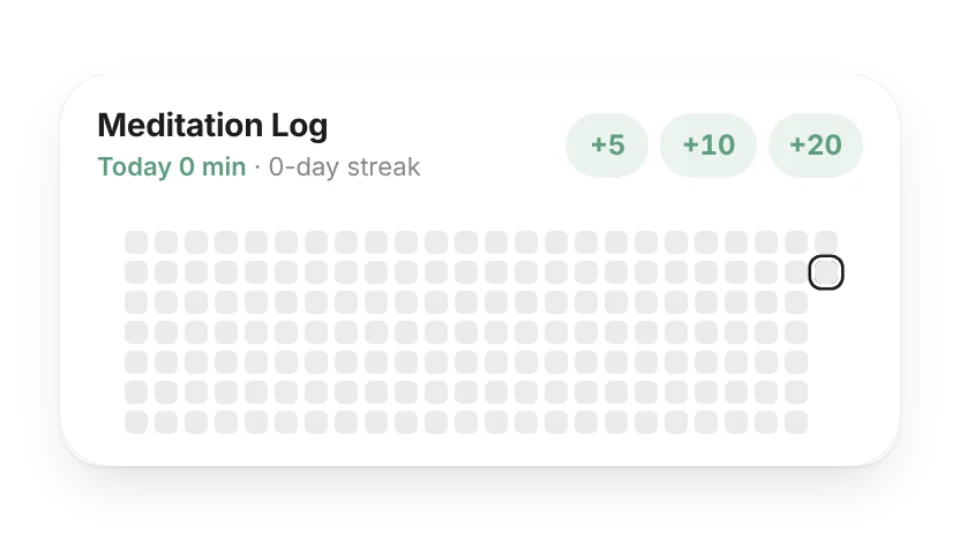
Meditation Log, Habit Heatmap and Daily Fan Check-in can now connect to a table. In the editor, set Where data is saved to My Data and click Create and connect. From then on, checking in from Notion writes straight to your table.
- Entries stay with you across widgets and devices.
- You can see every entry in My Data, and edit, delete or export it.
- The widget only gets a write-only key — it can't read your entries or delete anything.
Because entries now live in My Data, with usage counted per account, Daily Fan Check-in became free on October 14 (new copies of that widget save check-ins to a data table).
Here's how to connect one: Data source: save widget entries to My Data.
Log without opening WidgetStore: check-in links
Any table can have a check-in link. Keep it on a Notion page or in a phone bookmark, open it, tap Log it, and you're done. By-day tables add to today's entry; by-time tables add a new one.
Check-in links are write-only too, and you can reset one in a click if it leaks. They also accept POST requests, so you can hook them up to iOS Shortcuts and other automations. See Check-in links.
What's free
My Data is free to use. To keep it reliable without raising prices, every account has clear limits:
| Limit | Free | Pro |
|---|---|---|
| Tables | 3 | 20 |
| Entries in total | 15,000 | 50,000 |
| Writes per day | 20 | 80 |
| Connected widgets | 3 | 20 |
Daily limits reset the next day, and your data is never deleted because of a limit or because Pro ends — you can always export it. Full details: Free and Pro limits.
Why we're doing this
We want WidgetStore to be more than good-looking Notion widgets: a place where you and your data grow together. So we started with the foundation — your data belongs to you and you can take it anywhere, while widgets are just windows for logging and viewing it. Making that data useful on your dashboard and My Page is where we're heading next.
Create your first table in My Data. Ideas or feedback? Email us at islaohu@gmail.com.