The watering reminder works out the next watering day from each plant’s schedule (every 1–90 days) and the last watering date, sorts them by date, and shows what’s due today in blue and late ones in red, with a ring showing how much time is left. It works on its own; connect My Data in the editor’s Data section to get a “Watered” button next to each plant that logs it and moves the next date along. Use your own schedule — the widget doesn’t give plant-care advice.
The plant wall shows only photos you upload yourself. Give each plant a name and the date you got it to show how many days you’ve had it; sample illustrations show until you add photos. The small size shows a different plant each day.
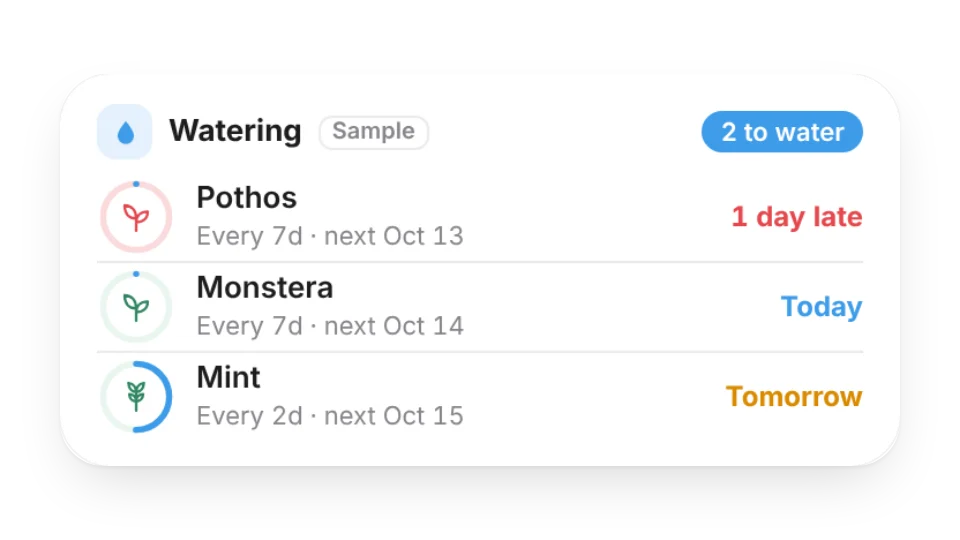 Plant Watering ReminderSet how often each plant needs water and when you last watered it, and see what’s due today and what’s next — late ones turn red. Connect My Data to log watering right from the widget
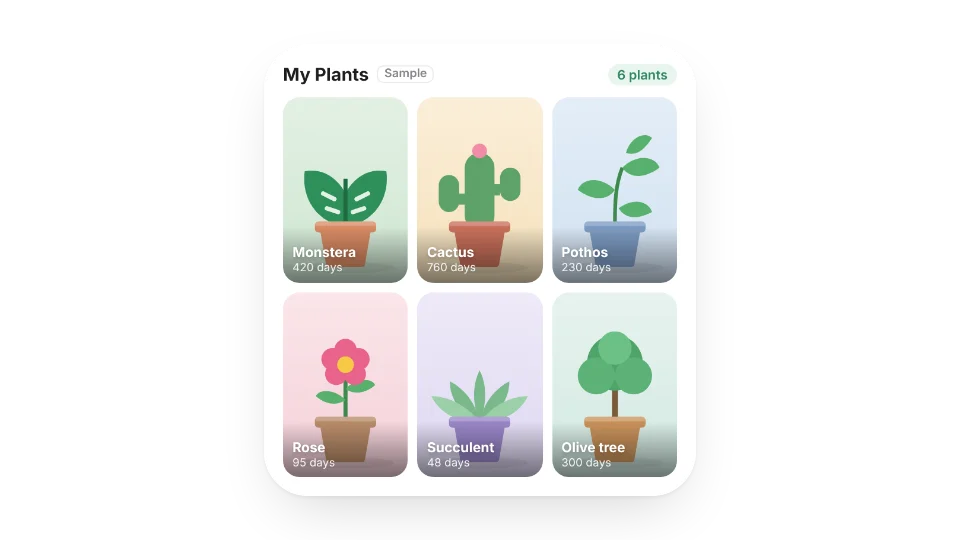 Plant WallTurn your own plant photos into a wall, with each plant’s name and how many days you’ve had it — the small size shows a different plant each day
Open a card, then click Create widget. You'll need to sign in — an email code is all it takes.
Change the text, colors, size and other options in the editor. The preview updates as you go.
Click Copy link, type /embed on a Notion page and paste it (or paste the link and choose Embed). Drag the corners to resize.
Help: Family & home widgets: baby, plants and choresEmbed in Notion, Obsidian, FlowUs and other apps