
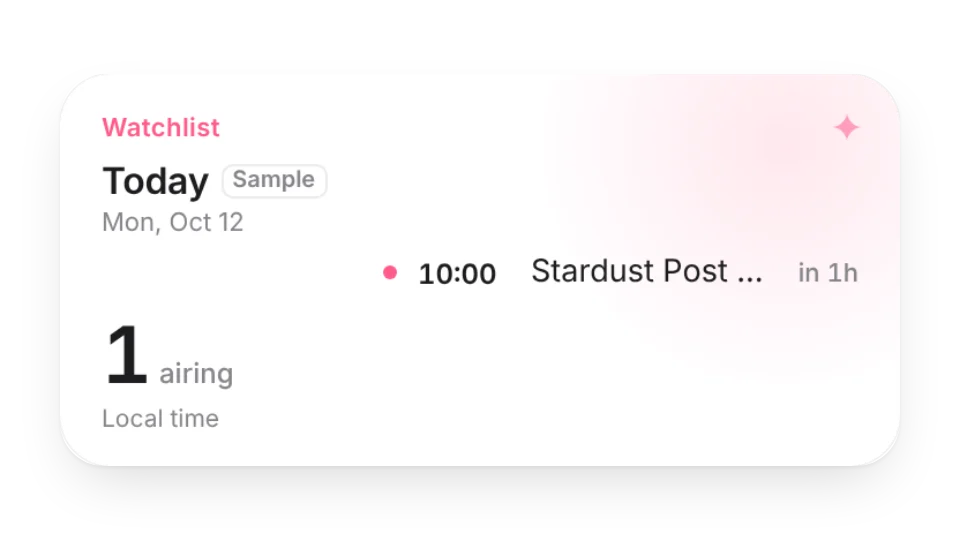
How to use
How to embed this widget in knowledge tools like Notion, Obsidian, FlowUs and Wolai
1. Embedding in Notion
- Copy this page's share link or iframe embed code.
- On a Notion page, type
/embedand choose the "Embed" block. - Paste the link or iframe code to show the widget preview on the page.
- Note: some features require Notion to allow third-party iframes. If it doesn't display, check your Notion permission settings.
2. Embedding in Obsidian
- Copy the widget page's link or iframe embed code.
- Use Obsidian's
iframeplugins (such as Advanced Tables or Obsidian HTML Embed). - Or insert a code block directly into a Markdown file:
<iframe src="your-url" width="400" height="300"></iframe>
- Save and preview to see the embedded widget.
3. Embedding in FlowUs
- Copy this page's link or iframe code.
- In the FlowUs editor, choose the
Embedblock. - Paste the link or iframe and save to embed it in the page.
4. Embedding in Wolai
- Likewise, copy the page link or embed code.
- While editing in Wolai, type
/embedand choose "Embed web page". - Paste the link or iframe code and you are done.
FAQ and tips
- If embedding fails or content won't load, try a share link that uses https.
- Some platforms restrict external iframe links; contact the platform's support or check its documentation.
- Adjust the width and height for the best display.
Features
- Live content preview and interaction
- Easily manage and reference widgets across knowledge bases
- Adaptive width and height
Still have questions? Contact the developer or check the platform's help docs for a more detailed integration guide.