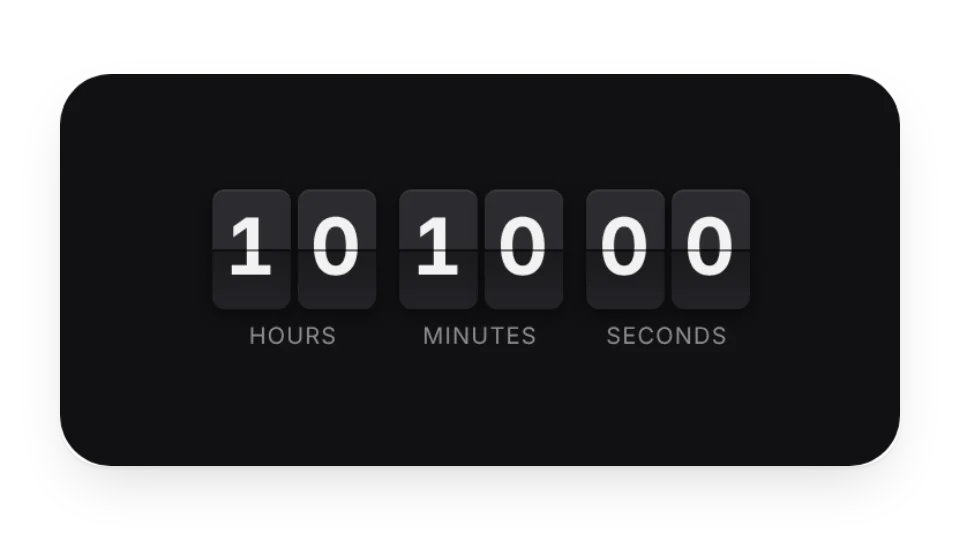
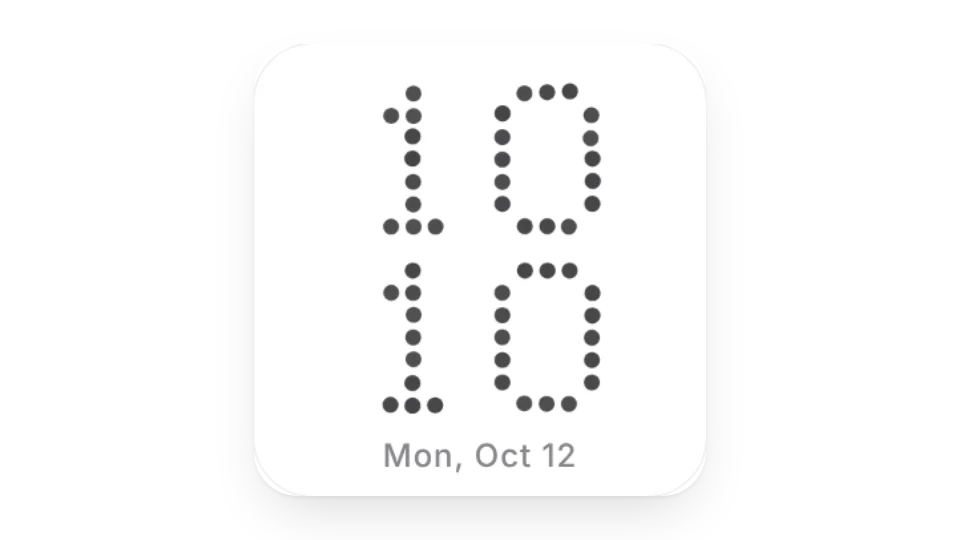
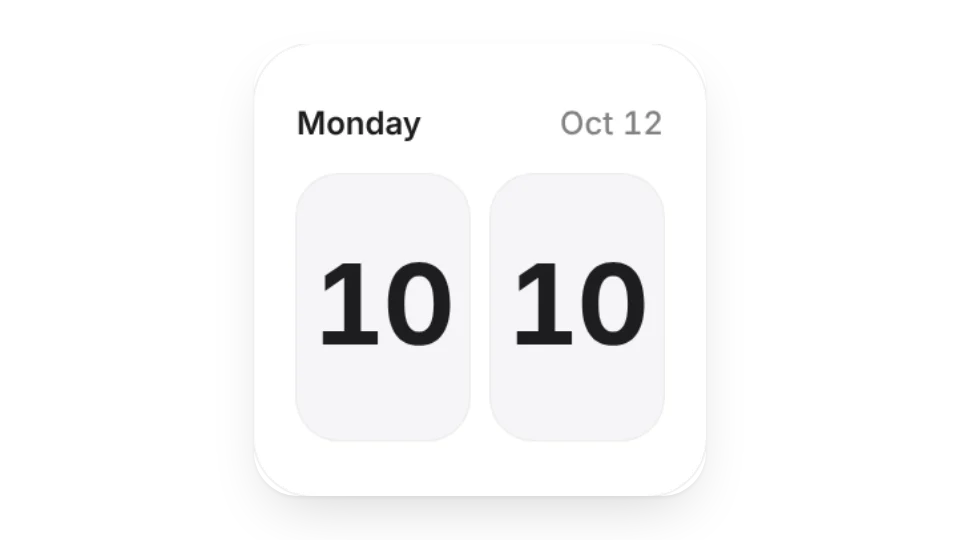
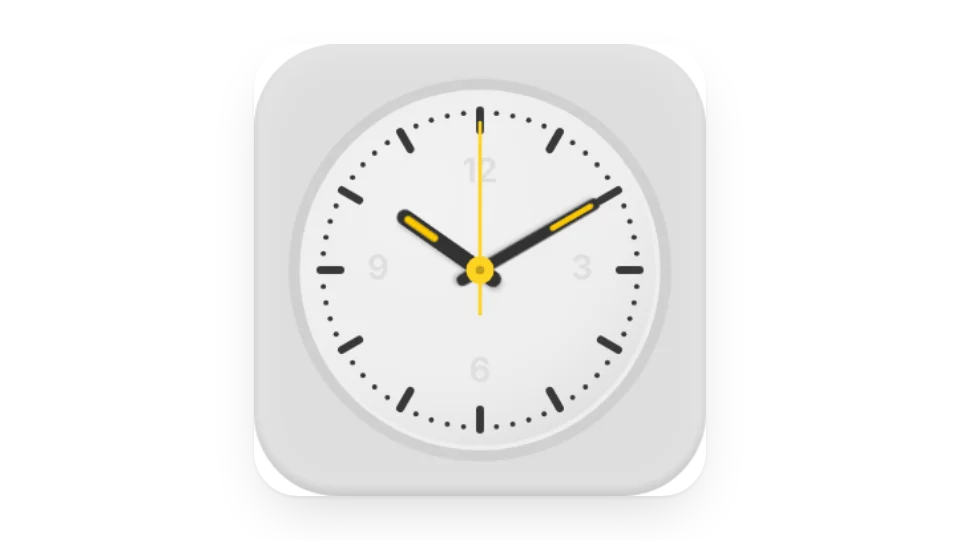
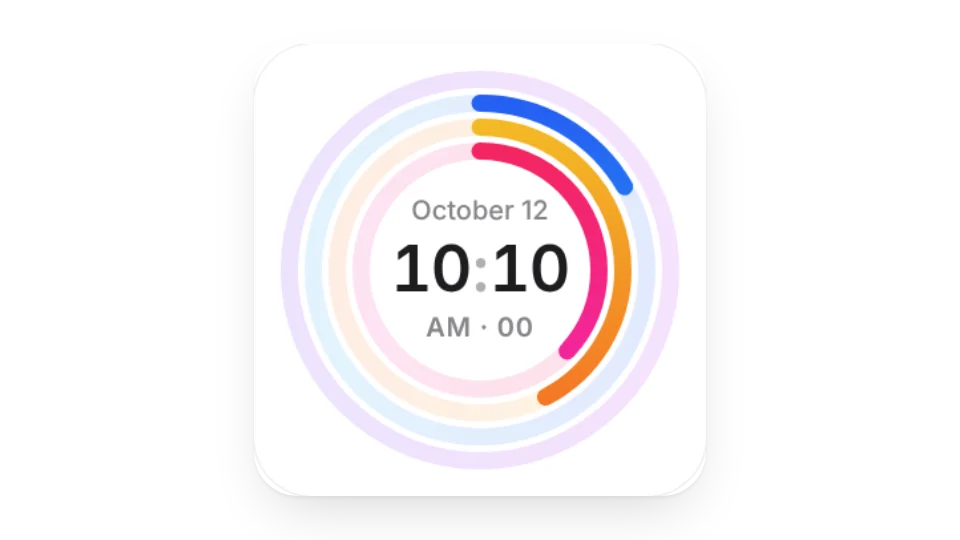
Notion has no clock block, but an embedded clock widget puts the time on your dashboard or planner page. Choose from a flip clock, a 3D particle clock, a simple clock, a flat clock and a colorful ring clock.
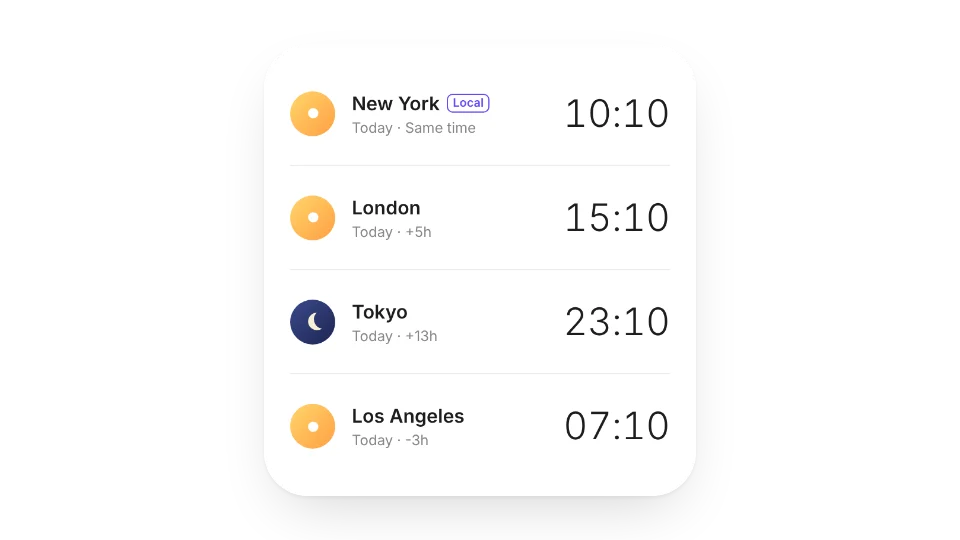
Working across time zones? The World Clock shows local time, day or night and the time difference for four cities at once. Clocks tick live on the viewer's device.
Widgets (6)
World Clock — Local time, day/night and time difference for 4 cities at once. Great for working across time zones
The clock runs on the device of whoever opens the page, so it shows their current time. The World Clock lets you pick cities and shows each city's local time.
Are these widgets free?
All 7 widgets on this page are free. Sign in to create them — free accounts can create a limited number, Pro has no limit.
Do they work in the Notion mobile and desktop apps?
Yes. Widgets are regular web embeds, so they show up in Notion on the web, on desktop and in the mobile app, as long as the device is online.
What language are the widgets in? Is there dark mode?
Widget text follows each visitor's browser language — English, Japanese, Simplified or Traditional Chinese. Most widgets also switch between light and dark with the system setting.
Can I use them outside Notion?
Anywhere that can embed a web page: Obsidian, FlowUs, Wolai, or your own website with an iframe.