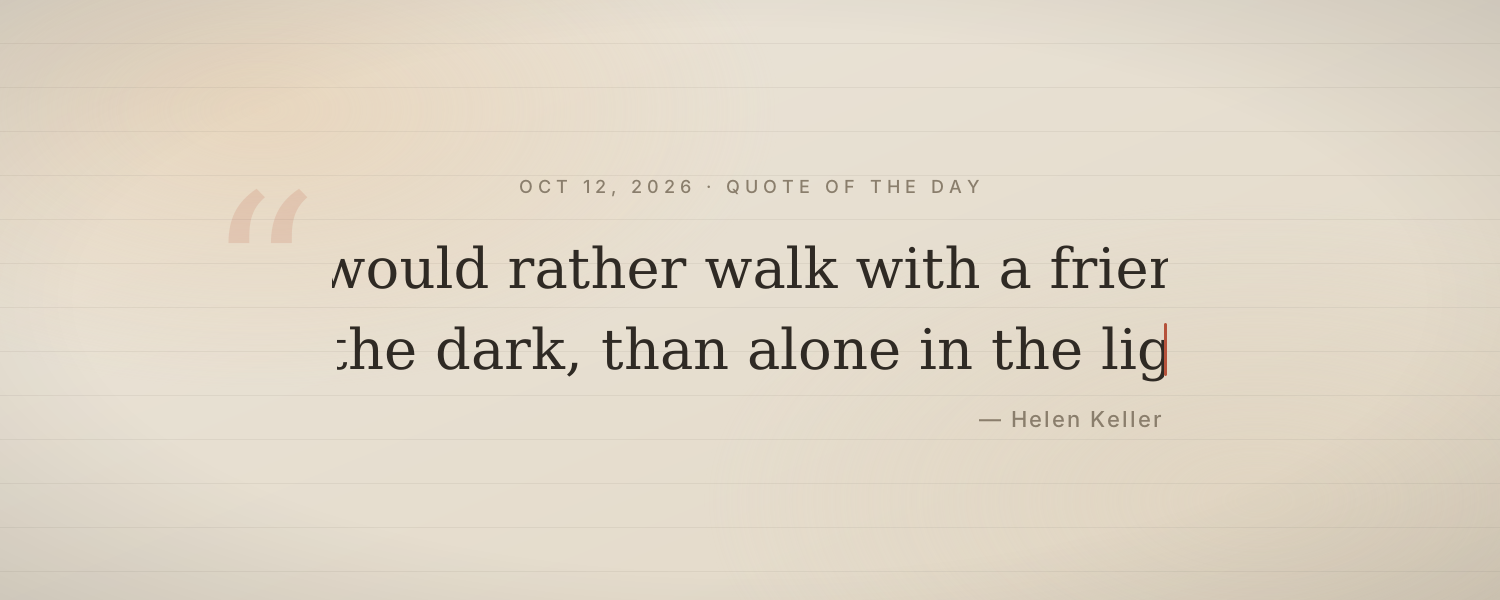
A line that changes every day is an easy way to make a home or journal page feel alive. The Daily English Quote widget shows a classic English sentence every day.
For the top of a page, the Quote of the Day cover types out the day's quote and its author with a typewriter effect, rotating about 60 English and 60 Chinese quotes by date.
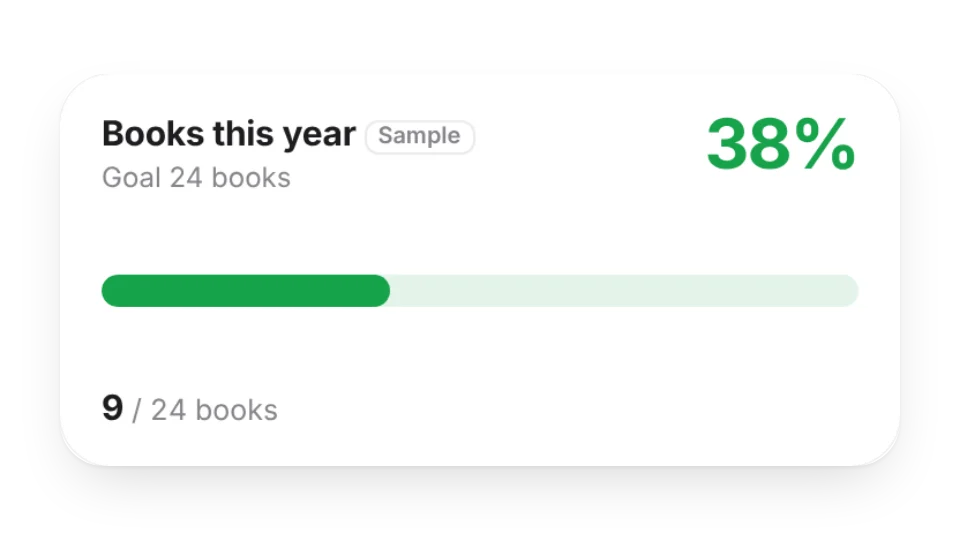 Progress TrackerTrack progress toward one goal as a bar, ring or segments, with an optional deadline. Type the numbers in, or pull them from My Data (log with one tap) or a Notion database
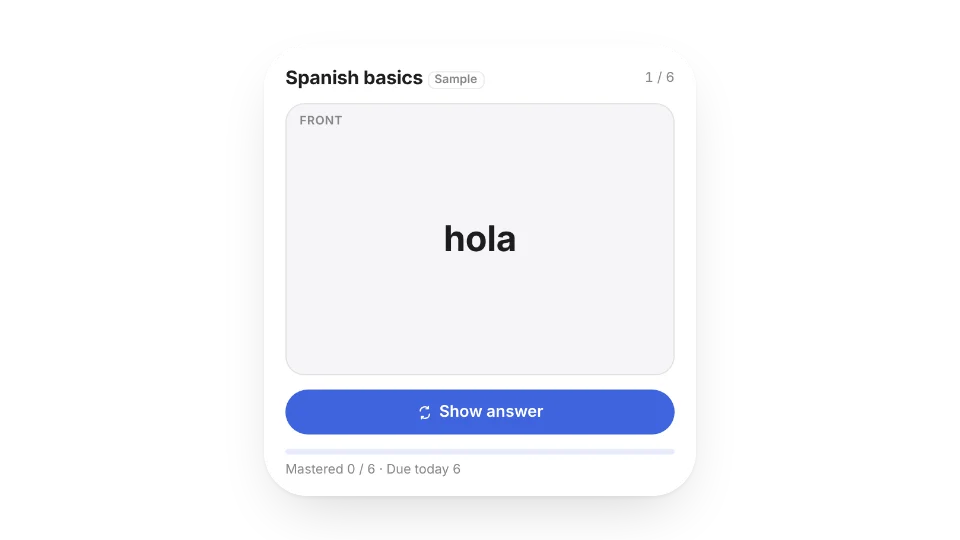 FlashcardsStudy vocabulary, formulas or exam notes: tap to flip, mark Got it or Again and reviews are spaced out for you. Type cards in, or pull them from My Data or a Notion database
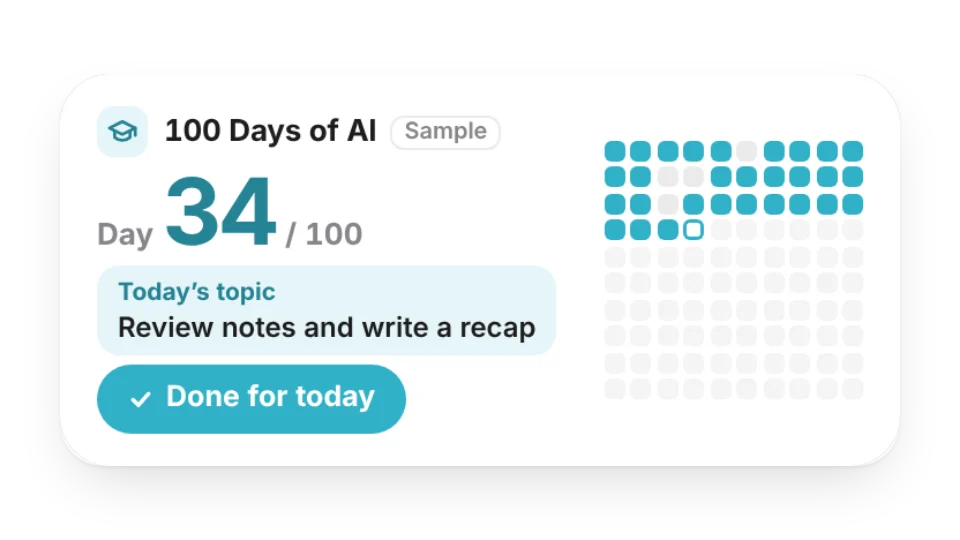 100 Days of AIA “100 Days of AI” learning challenge: see which day you’re on, a 10×10 grid of days done and missed, your streak, and today’s topic from your own plan. One tap logs the day — saved to My Data
 Prompt Tip of the DayOne practical prompting tip a day — state the goal, show examples, set the format, let it ask questions first — with why it helps, plus a before / after rewrite in the large size. Filter to coding, writing or analysis
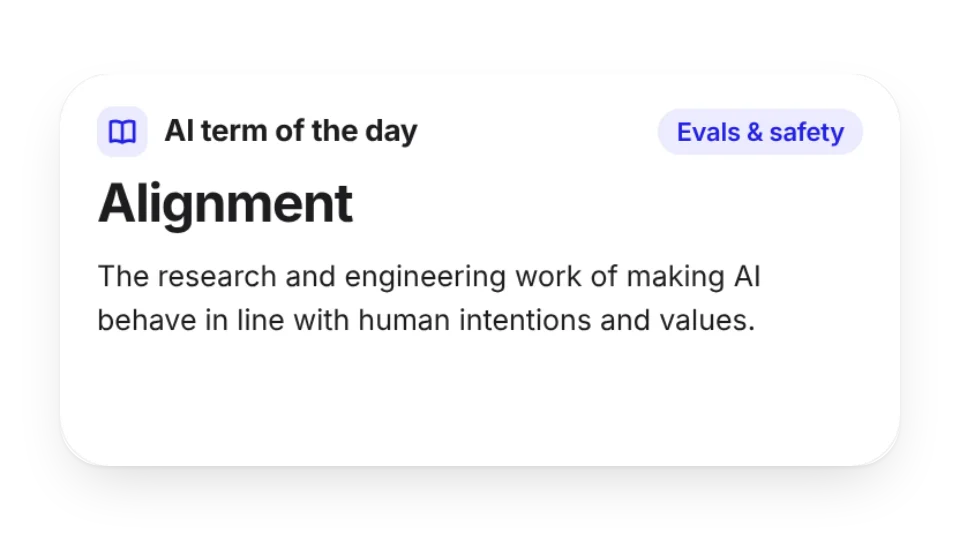 AI Term of the DayLearn one AI term a day — tokens, RAG, agents, MCP, fine-tuning, quantization and more — explained in a sentence or two, with an example in the large size. Pick a category or pin a single term
 Latest arXiv PapersThe newest AI papers on arXiv — pick Artificial Intelligence, NLP, Machine Learning, Computer Vision and more, optionally filter by keywords — with title, authors and when they were submitted. Tap to open the paper
 Daily Book ExcerptKeep the lines you’ve copied from your reading and show a different one each day, with the book, author and page — set in a serif on a paper-like card
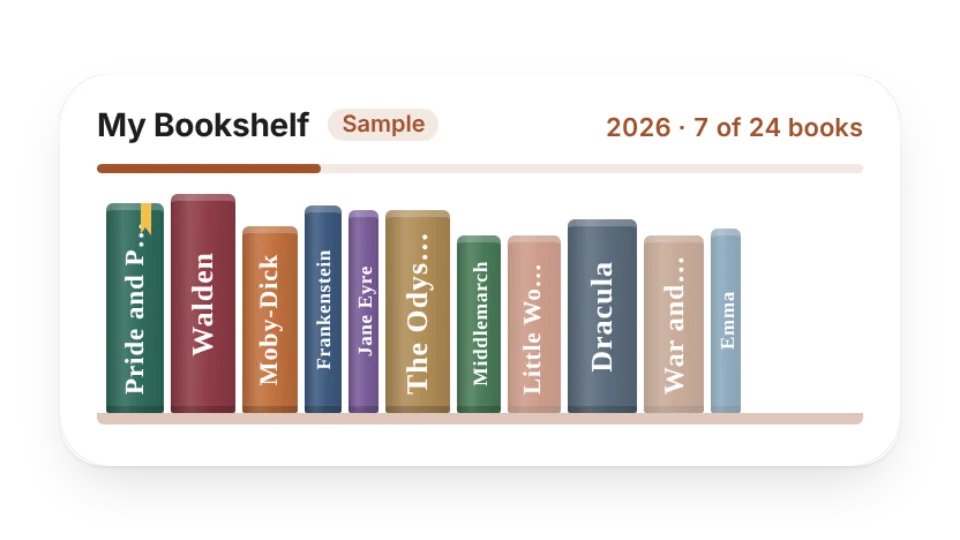 BookshelfLine up the books you’ve read, are reading and want to read on a shelf — add your own cover photos if you like — with this year’s count and your reading goal on top
 Currently ReadingThe book you’re reading now — cover, current page, a progress bar and an estimated finish date. Set the page in the editor, or connect My Data and tap +10 pages to log
 Daily English QuoteA classic English sentence every day to sharpen your English
Open a card, then click Create widget. You'll need to sign in — an email code is all it takes.
Change the text, colors, size and other options in the editor. The preview updates as you go.
Click Copy link, type /embed on a Notion page and paste it (or paste the link and choose Embed). Drag the corners to resize.