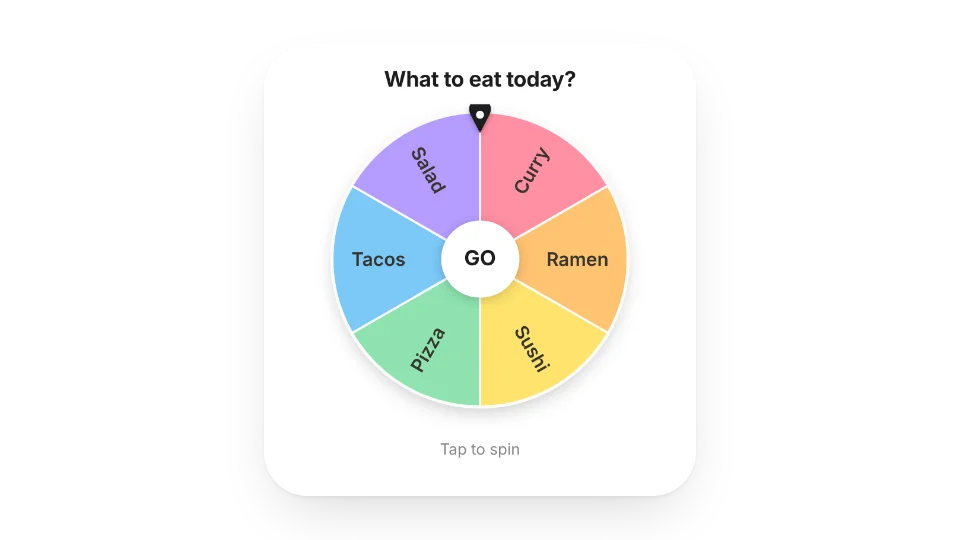
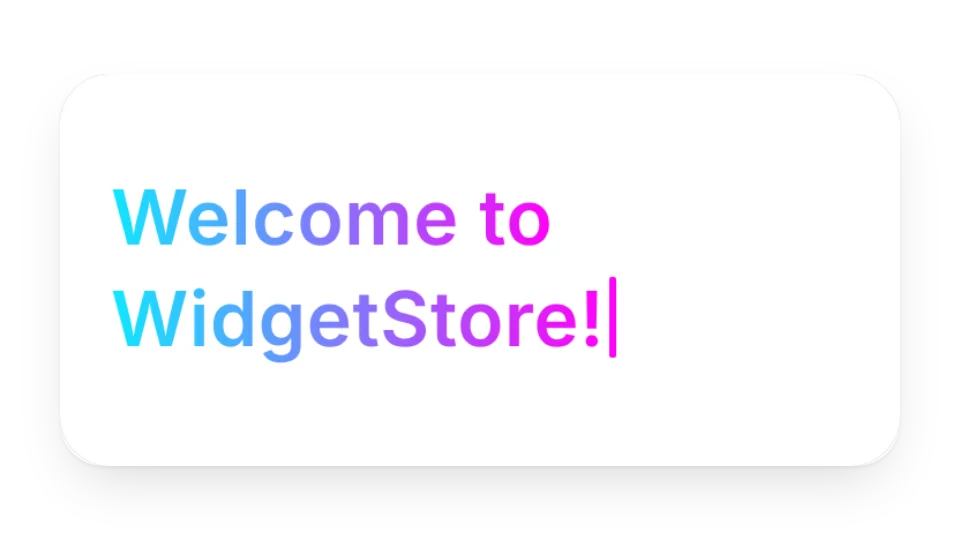
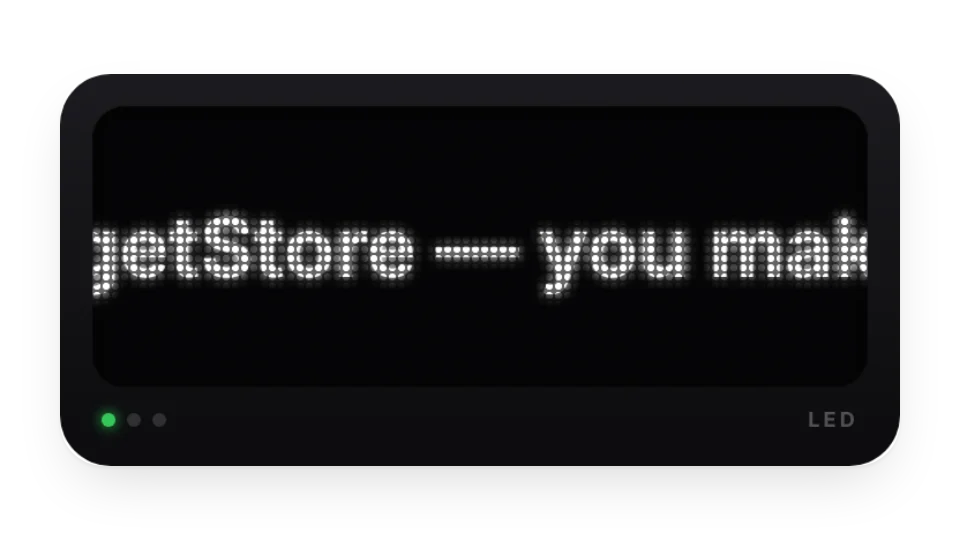
Can't decide? Put your options on the Decision Wheel and spin. To bring a heading to life, type out phrases with the Typewriter Animation or show your name with Animated Text; the LED Marquee is handy for a scrolling notice.
Widgets (4)
Decision Wheel — Can't decide? Add your options and spin. Let the wheel pick what to eat or do today
Typewriter Animation · Pro — Type out a list of phrases like a typewriter, with custom colors and speed
3 of the 4 widgets on this page are free; the 1 marked Pro need a Pro membership. Free accounts can create a limited number, Pro has no limit.
Do they work in the Notion mobile and desktop apps?
Yes. Widgets are regular web embeds, so they show up in Notion on the web, on desktop and in the mobile app, as long as the device is online.
What language are the widgets in? Is there dark mode?
Widget text follows each visitor's browser language — English, Japanese, Simplified or Traditional Chinese. Most widgets also switch between light and dark with the system setting.
Can I use them outside Notion?
Anywhere that can embed a web page: Obsidian, FlowUs, Wolai, or your own website with an iframe.